

Until now, someone on your team had to start every root cause analysis in Rollbar. An alert fires, they open the item, read enough of the stack trace to decide it deserves an investigation, and start the analysis by hand, after dropping whatever they were doing.
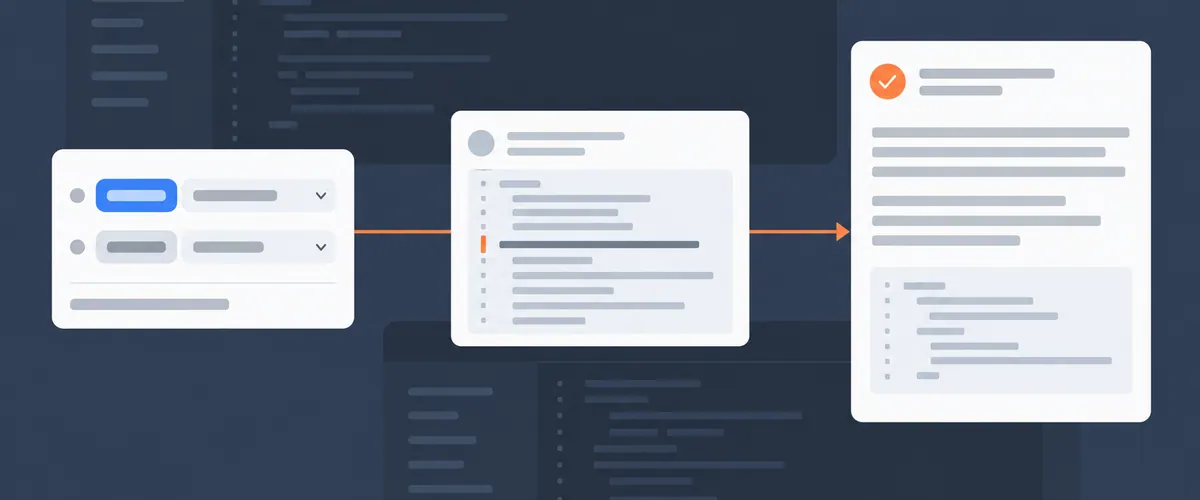
With Agent Automation, Resolve, Rollbar’s AI agent for root cause analysis and fixes, takes over that step. You write a rule once in Project Settings, and when an error matches it, Resolve starts the analysis on its own. By the time someone opens the item, the analysis is already underway or finished.
TL;DR
- Agent Automation runs Resolve on errors that match a rule you define, so nobody has to open an item and start each analysis by hand.
- A rule has two conditions, environment and level, and one outcome, which is either root cause analysis or a fix PR that Resolve opens after the analysis.
- Rollbar checks rules against every new occurrence, so an item that was open before you wrote the rule gets analyzed the next time it fires, and each item gets one run.
- The item timeline shows a “triggered by rule” indicator that links to the rule that fired, so anyone can see which rule started a run.
- Resolve never merges its own work, so you still review and merge every pull request it opens.
A rule is two conditions and one outcome
Agent Automation is a project-level setting at Project Settings → Agent Automation, and each rule you create there has two halves.
The conditions you set decide which errors qualify. Environment limits the rule to one environment, production for instance, and leaving it blank matches all of them. Level limits the rule to errors at or above a severity you choose, and the levels run Critical, Error, Warning, Info, and Debug.
You can combine the two, and the combination we’d start with is Environment production with Level Error. That rule fires on errors at Error level or above in production and ignores everything else.
The outcome decides what Resolve does when an error qualifies. Root cause analysis has Resolve investigate the error and write a root cause summary to the item, where it appears on the Root cause & fix tab and in the item timeline. Fix PR creation goes one step further, and after the analysis completes, Resolve opens a pull request with a proposed fix in the connected GitHub repository.
Root cause analysis on its own is a complete rule. If you want the explanation on the item and nothing touching your repository yet, stop there and switch the outcome to fix PR creation later.
Every new occurrence is checked, and each item gets one run
Rollbar checks your rules against every new occurrence of an item, so a rule you write today also covers items that were open before it existed. An item that went quiet three weeks ago without an analysis, then starts firing again after a deploy, qualifies when that next occurrence lands, and the regression gets an analysis without anyone having to start one.
Once an item has an analysis, later occurrences don’t start another run, so an item that fires a thousand times overnight still ends up with a single analysis on its timeline. Only after the item is resolve and reopened, either by hand or rule, will the agent run again, after the rule condition is met.
The one-run limit is per item, so a rule still runs on every new item that matches it. A rule with both conditions blank matches every item at every level in every environment, warnings and debug messages included, and each of those runs shows up on an item timeline and in any notification channel you’ve connected. Start at Error level in production, and widen the rule once you’ve seen what it catches.
Every automated run links back to the rule that started it
When a rule starts a root cause analysis, the item timeline shows a “triggered by rule” indicator. An engineer who finds an analysis they didn’t start can click it and go straight to the rule that fired, without searching through project settings.
Rollbar can notify you in Slack or email when a run ends
You set these notifications up at Project Settings → Notifications by adding rules for the Root cause analysis succeeded/failed or Fix PR creation succeeded/failed trigger types, and the Agent Automation screen has a shortcut there.
Include failed runs as well as successful ones, so a run that didn’t finish reaches the same channel as the ones that did.
You still review and merge every fix
In the 2025 Stack Overflow Developer Survey, 46% of developers said they don’t trust the accuracy of the output from AI tools, up from 31% the year before. A rule changes when the agent starts, and your team still reads every analysis and decides whether each pull request gets merged.
At launch, three details affect what a rule can do.
- Resolve opens the pull request, and you merge it. Resolve never merges its own work, and during the beta each fix is limited to one repository. The Resolve launch post covers how fixes and merges work and what the beta limits are.
- The analysis can come back indeterminable. When the model cannot confidently determine a root cause, the Root cause & fix tab shows
Root cause indeterminablewith a short explanation. The usual causes are GitHub not connected, the repository not mapped to the project, or source maps missing, so stack traces never resolve to real files. Once the setup is corrected, choose Retry analysis, and the Rollbar Resolve docs cover each cause in more detail. - AI features can be turned off for the whole account. If an account administrator has disabled them, neither the Root cause & fix tab nor Agent Automation settings appear in any project. An account owner turns them back on at Account Settings → Agents.
Your first rule should cover production errors and run analysis only
- Install the Rollbar GitHub App and map the relevant repository to your project under Account Settings → Source Control, since both outcomes depend on it.
- Go to Project Settings → Agent Automation and create a rule.
- Set Environment to
productionand Level toError. - Choose root cause analysis as the outcome, and switch it to fix PR creation later if you want Resolve to open pull requests too.
- Add a notification rule at Project Settings → Notifications for the
Root cause analysis succeeded/failedtrigger, so each finished or failed run reaches the channel your team already watches.
From then on, Resolve starts an analysis the moment a matching production error arrives on an item that doesn’t have one yet.
Read the Agent Automation docs and write your first rule
FAQ
Does Agent Automation open pull requests automatically?
Only when the rule’s outcome is set to fix PR creation. A rule whose outcome is root cause analysis writes the analysis to the item and stops there. Even with fix PR creation enabled, Resolve opens the pull request and leaves the merge to you.
Does Agent Automation run again every time the same error recurs?
No, each item gets one run. Rollbar checks rules against every new occurrence, so an item that was open before the rule existed qualifies the next time it fires, but once an item has an analysis, later occurrences don’t start another run. The limit applies per item, so the environment and level you set on each rule still decide how many items get analyzed. Items that have been resolved and reopened will reset the one time per run rule.
Do I need GitHub connected to use Agent Automation?
Yes. Root cause analysis and fix PR creation both require a GitHub App installation with the relevant repository mapped to your Rollbar project, whether the run is triggered by a rule or started manually from an item.
<script type="application/ld+json">
{
  "@context": "https://schema.org",
  "@type": "FAQPage",
  "mainEntity": [
    { "@type": "Question", "name": "Does Agent Automation open pull requests automatically?",
      "acceptedAnswer": { "@type": "Answer", "text": "Only when the rule's outcome is set to fix PR creation. A rule whose outcome is root cause analysis writes the analysis to the item and stops there. Even with fix PR creation enabled, Resolve opens the pull request and leaves the merge to you." } },
    { "@type": "Question", "name": "Does Agent Automation run again every time the same error recurs?",
      "acceptedAnswer": { "@type": "Answer", "text": "No, each item gets one run. Rollbar checks rules against every new occurrence, so an item that was open before the rule existed qualifies the next time it fires, but once an item has an analysis, later occurrences don't start another run. The limit applies per item, so the environment and level you set on each rule still decide how many items get analyzed. Items that have been resolved and reopened will reset the one time per run rule" } },
    { "@type": "Question", "name": "Do I need GitHub connected to use Agent Automation?",
      "acceptedAnswer": { "@type": "Answer", "text": "Yes. Root cause analysis and fix PR creation both require a GitHub App installation with the relevant repository mapped to your Rollbar project, whether the run is triggered by a rule or started manually from an item." } }
  ]
}
</script>
